

A motion-activated security camera is most useful when it helps your household decide which movement deserves attention. The answer is not simply turning sensitivity all the way up. Outdoor alerts work better when you first map the property, create practical motion zones, account for distractions, and decide how recording, lighting, and notifications should work together.
That matters around a front yard or driveway, where one view may include a porch, sidewalk, street, parked cars, trees, and a neighbor-facing boundary. This guide explains how to plan those areas and evaluate outdoor tracking and lighting.
Start with the Property Map
Before opening the camera app, walk through the area the camera will cover. A driveway security camera has a different job from a porch camera, even when both are triggered by movement. The driveway view may need to show the path from the street, vehicles, and the approach to a garage. The porch view may need to show steps, packages, the front door, and the nearby walkway.

Make a simple map from the camera’s point of view. Mark:
- The main entrance path
- The driveway and parked-car area
- The garage or side gate
- The porch and front walk
- Pet areas, garden beds, and moving plants
- The sidewalk, street edge, and neighboring property
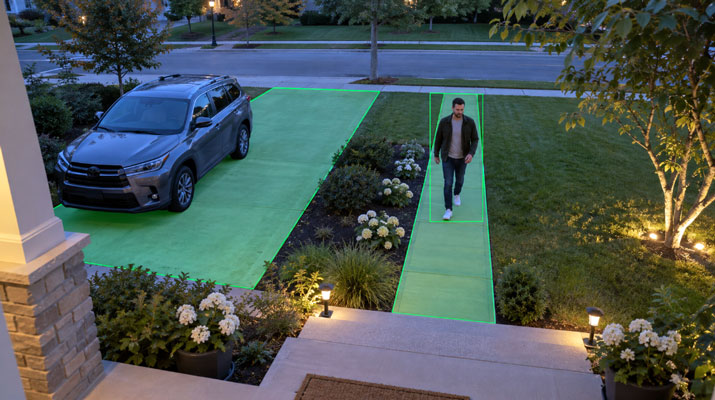
Divide the scene into three categories. The action area should trigger alerts, such as the driveway approach or path to the front door. The context area can remain visible without creating notifications. The exclusion area includes sources of noise or privacy concerns, such as a busy road, moving branches, reflective surfaces, or a neighbor’s windows. Privacy should be part of the camera plan from the start. Always check local laws and aim to minimize capturing neighboring homes or public areas beyond your property.
The map shows whether one camera has a clear assignment. Start with the movement you actually want to review, then position the camera around it.
Build Useful Motion Zones
Motion zones tell the camera where movement should matter. The common mistake is drawing one large zone across the entire image, which often includes the scenery that creates unwanted alerts.
Build zones around paths rather than backgrounds. A front-yard setup might place one zone over the driveway surface and another over the walkway to the door. Keep the road, sidewalk edge, tree canopy, flags, hanging plants, and areas beyond your property outside the active zones when possible.

If the camera supports multiple zones, use them to separate movement types. A driveway zone can cover people approaching a vehicle or garage, a porch zone can focus on the steps, and a side-path zone can watch a gate. Keep zones distinct enough that one person does not create a chain of overlapping alerts.
Sensitivity should support the zone, not replace it. Higher sensitivity can catch smaller movement, but it can also increase alerts from rain, insects near the lens, shadows, or changing light. Lower sensitivity can make the notification stream calmer, but it may also reduce wanted events. Start with a moderate setting, walk the real paths, and change one control at a time.
Use this order when a camera misses or overreacts:
- Check the camera angle and remove obvious obstructions.
- Tighten or reshape the motion zone.
- Adjust sensitivity in small steps.
- Review both the recording and the notification.
Change one control at a time, so you know which adjustment helped.
Reduce Outdoor False Alerts
Outdoor cameras have to interpret a messy scene. Leaves move, headlights sweep across parked cars, rain changes the image, and insects can look large near the lens. A web close to infrared light can create repeated night alerts.
| Repeat issue | Useful adjustment |
| Branches on windy days | Trim the branch, narrow the zone, or adjust the camera angle. |
| Headlights crossing the driveway | Pull the zone away from the road edge or adjust the camera so reflected light is less central. |
| Insects near a light | Review camera placement and light behavior. |
| Too many object alerts | Use person, vehicle, pet, or package detection where supported, but keep the view clear. |
Fix the repeat offender first. That usually works better than weakening the entire camera setup.
Match Lighting to the Alerts You Want
Built-in lighting can make an outdoor event easier to understand near a driveway, garage, side path, or porch. It should support the alert plan rather than create a second source of distraction.
Decide which event should turn on the light and which should only be recorded. Near a public sidewalk, it may be better to record a wider area while reserving brighter warning behavior for movement inside a tighter zone.
Aim the light toward your own walkway, driveway, or entry area rather than across a property line or toward a neighbor’s window. If the camera includes red or blue warning lights, reserve them for areas and schedules that make sense for your household.
Review lighting and video together. A light can improve visibility but also create glare on a wall, vehicle, or reflective surface. If the recording becomes harder to interpret, adjust the angle first.
Make a Motion-Activated Security Camera Send Useful Alerts
An outdoor alert is a chain of decisions. The camera detects movement, checks whether it falls inside an active zone, applies filtering, records it, and decides whether to notify you. If the zone is too broad or notifications are too frequent, the system becomes difficult to use.
Separate the jobs when the app allows it. Recording can cover more context than notifications need to show. A driveway camera might record activity near the street-facing edge while notifying you only about movement closer to the home.
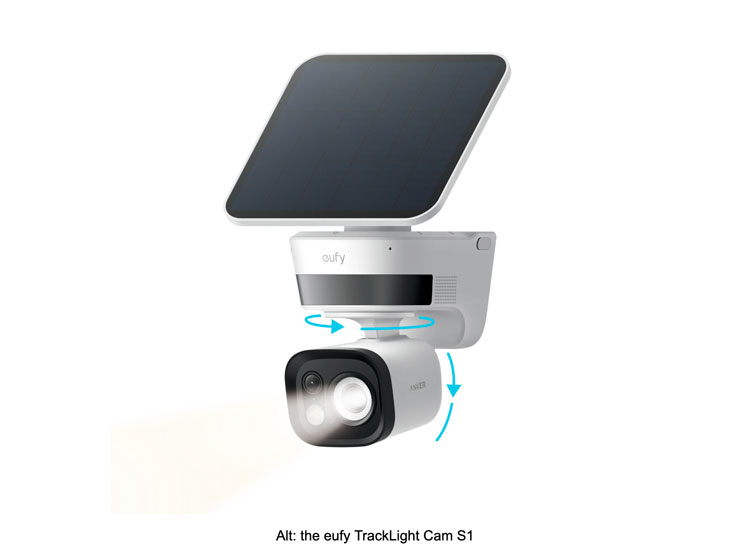
The eufy TrackLight Cam S1 is a strong fit for this type of outdoor alert setup. It combines 180° dual-radar detection with three customizable detection zones, automatic person tracking, 355° pan and 75° tilt, 4K video, and red-and-blue flashing warning lights. For local recording, it supports a microSD card (sold separately) or compatible eufy ecosystem devices such as HomeBase 3, without requiring a monthly storage fee. In practice, the three zones could be configured around areas such as an entrance, driveway, or side approach, while auto-tracking can follow a detected person and the warning lights provide an additional visible deterrent.
Test and Review Alerts
Do not finish the setup after one successful walk test. Outdoor conditions change throughout the day, and nuisance alerts may appear only after dark or in changing weather.
Test the routes a real visitor would take:
- Approach from the driveway.
- Walk across the front path.
- Move from a parked car toward the door.
- Open the side gate or approach the garage.
- Stand near the edge of each active zone.
For every route, check whether the camera recorded the movement, captured enough context, and sent the notification at a useful time. Too many alerts call for notification changes; too little context may require a better angle, zone, or lighting choice.
Then test areas you do not want to trigger alerts. Walk along the visible sidewalk edge, move near plants, pass parked cars, and watch how headlights or shadows change the image. If most clips show the same non-event, fix that pattern first.
Open the live view and recorded clips to check whether neighboring windows, private yards, or public areas appear more than necessary. Narrow the zone, adjust the camera angle, or use privacy masking where supported. If the camera can pan or track, verify that its movement stays within the intended property boundary.
If expected events are still missing, check the power mode, firmware, Wi-Fi connection, detection zone, sensitivity, notification permissions, recording settings, object filters, and mounting angle.
Conclusion
A motion-activated security camera works best when it is planned around the property rather than pointed at the widest possible scene. Start with the entrance, driveway, porch, pet areas, street edge, and privacy boundaries. Shape zones around the paths that matter, reduce outdoor false alerts, and adjust sensitivity only after the view and zones make sense.
Use lighting selectively, then test the system at different times and from real walking routes. For homeowners who want outdoor tracking, clearer event review, and local storage, the eufy TrackLight Cam S1 is the right fit.